Setting Up Google AMAPI
Google's Android Management API (AMAPI) allows AndroidNexus to manage your Android devices using Google's enterprise management tools. This guide will walk you through connecting your AndroidNexus account with Google.
What You'll Need
Before starting, make sure you have:
-
An AndroidNexus account
-
A Google Workspace email address (recommended) or Gmail account
- Having Super Admin Credentials is advised otherwise contact your IT Administrator to get EMM access (You can supply the link below for reference to your IT Admin)
- Sign Up for Android Managment Using Managed Google Domains
-
Admin access to your AndroidNexus console
Using a Google Workspace account is recommended as it provides additional security and management features for your organization.
Setup Process
Step 1: Navigate to Settings
- Log in to your AndroidNexus Console
- Click the Settings icon (cog icon) in the top right corner of the page
- Scroll down to the bottom of the settings page
- Under the Integrations section, click "Set up AMAPI"
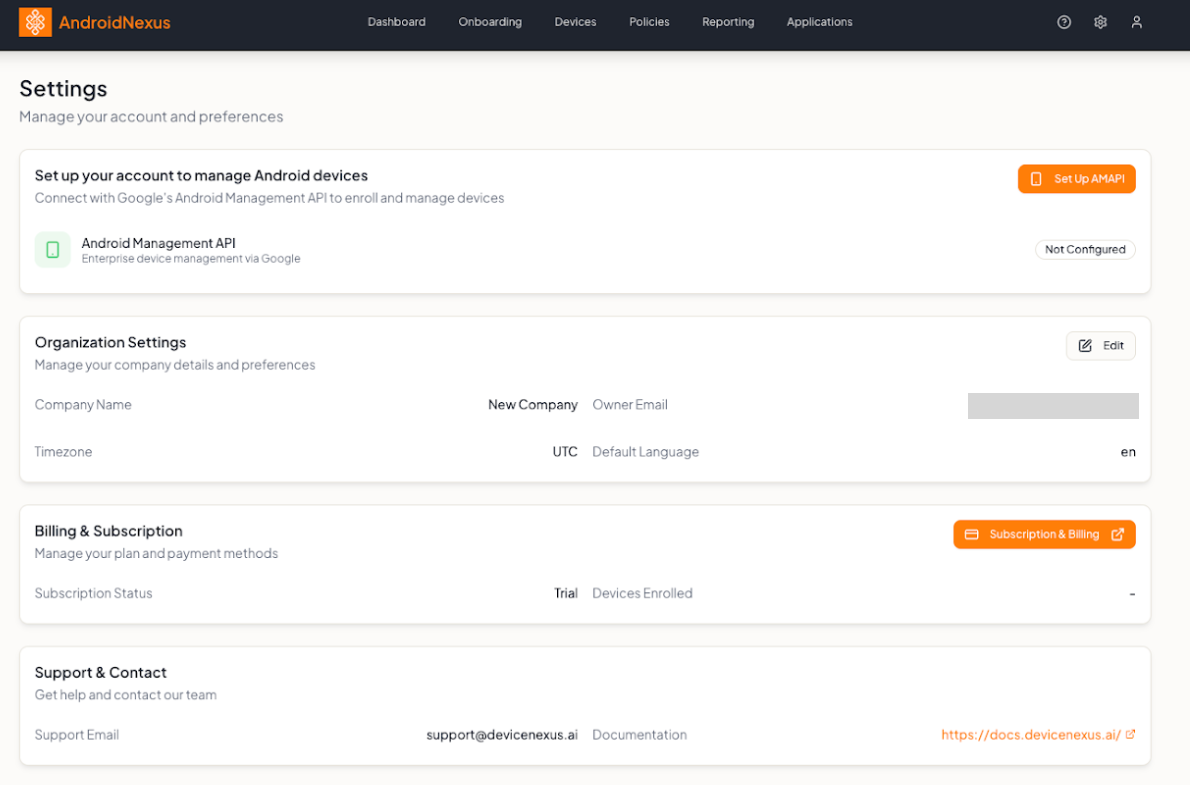
Step 2: Set Up AMAPI
- Click on Set Up AMAPI and you will be presented with the pop up shown below
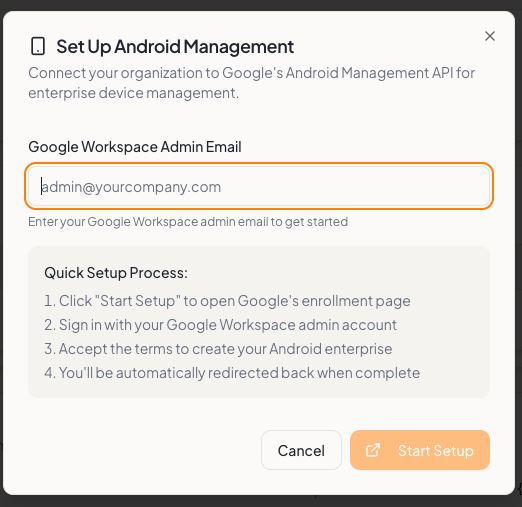
- Type in your Google Workspace email i.e [email protected]
- Press Start Setup. You will be directed to a Google sign in page
Step 3: Sign in with Google
A Google sign-in window will open. This is where you'll authorize AndroidNexus to manage Android devices on behalf of your organization.
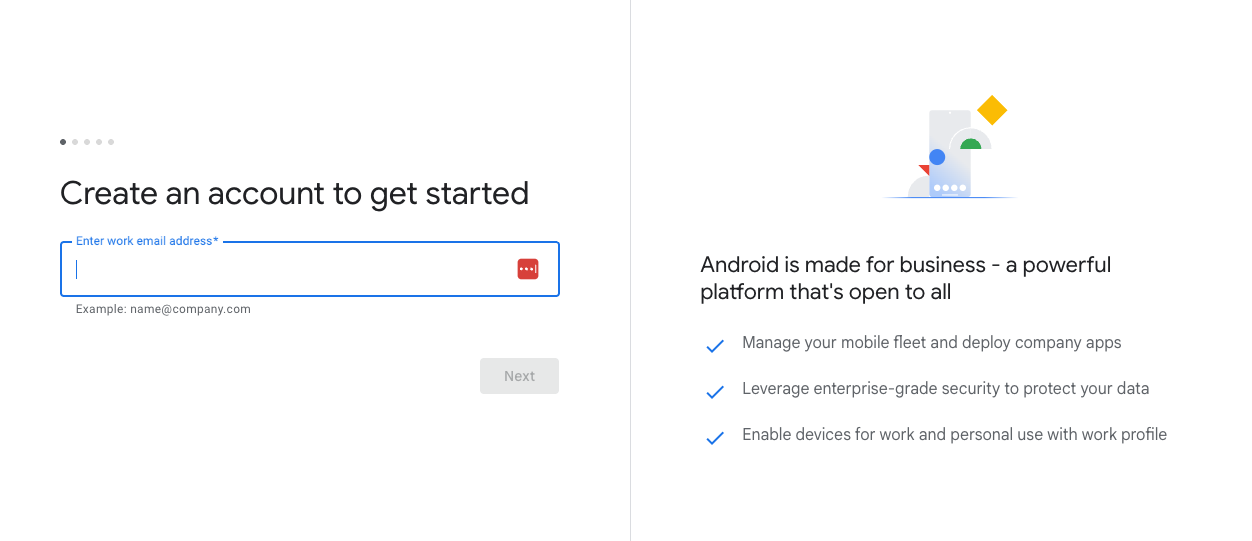
- Enter your Google Workspace email address
- Click Next
- Enter your password
- Click Sign in
Make sure you're signing in with an account that has admin permissions for your organization. Regular user accounts may not have the necessary permissions to complete this setup.
- If you're using a Google Workspace account and haven't verified your domain yet, you may see additional prompts. Follow the on-screen instructions to complete this step.
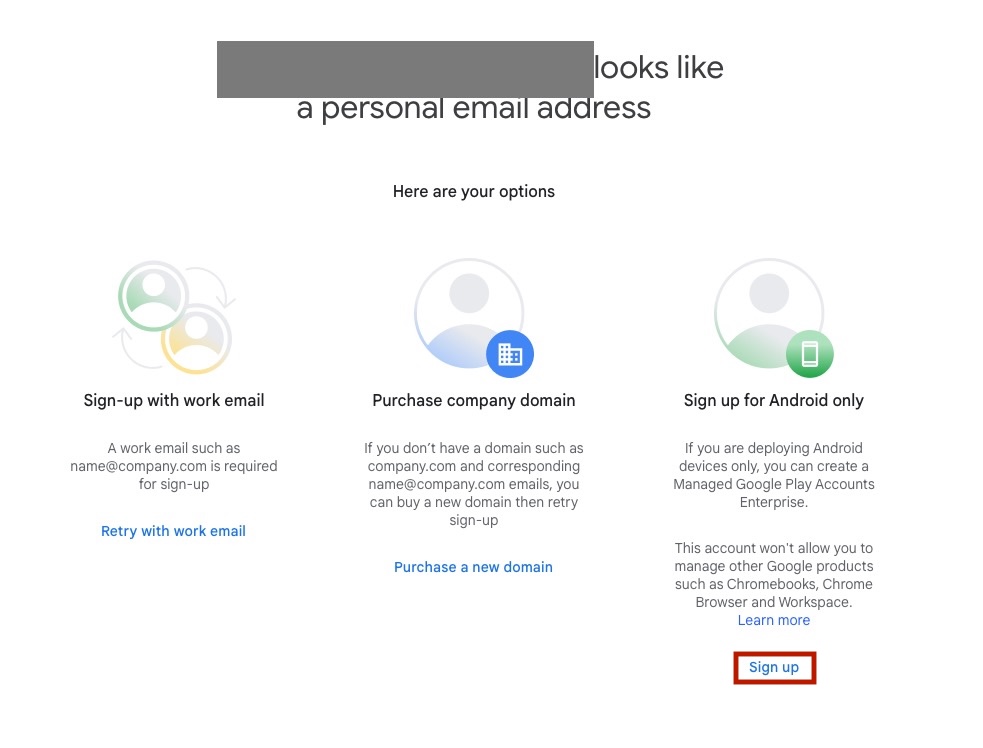
- If using a personal Gmail account you will need to follow the "Sign up for Android only" flow and press Sign Up then follow Google setup flow. Once complete you will be able to move to Step 4
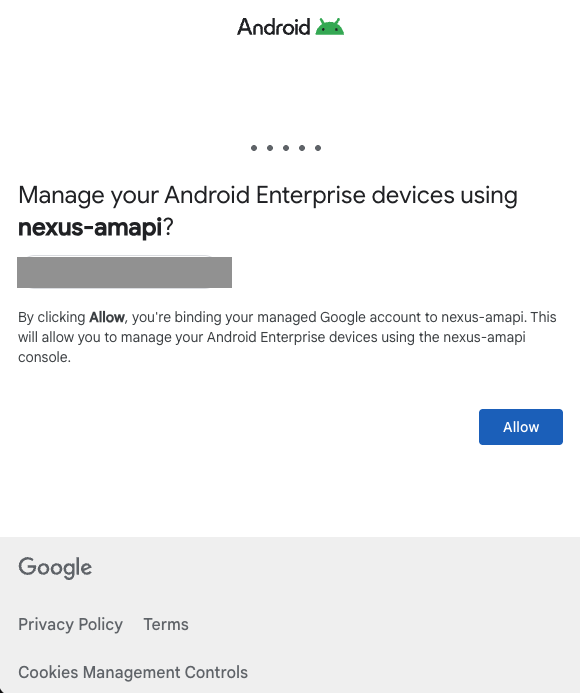
Step 4: Accept Permissions
Google will ask you to grant AndroidNexus permission to manage Android devices in your organization.
- Review the permissions carefully
- Click Allow to grant AndroidNexus access permissions to manage your devices
Step 5: Confirm Connection
Once the setup is complete:
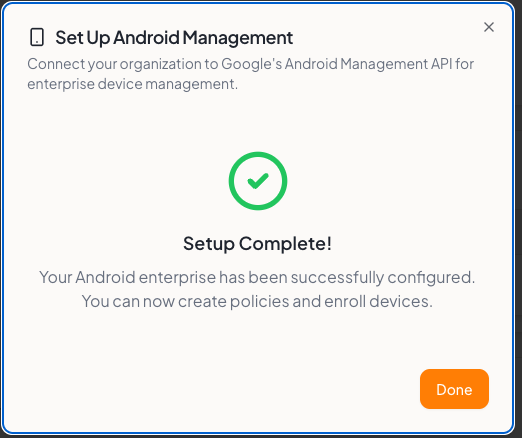
- The Google sign-in window will close automatically
- You'll be redirected back to AndroidNexus
- You should now see:
- An Enterprise ID displayed in the AMAPI section
- A "Connected" status indicator
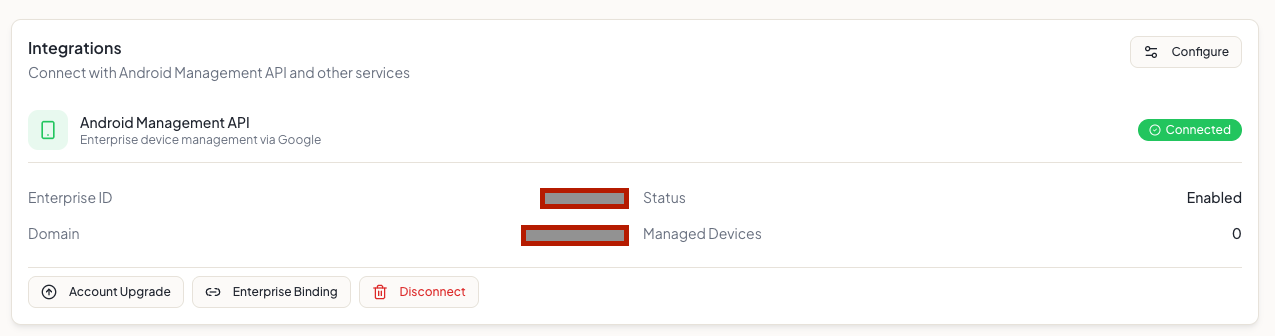 Congratulations! Your AndroidNexus account is now connected to Googles Enterprise Android Management System.
What Happens Next?
Now that AMAPI is connected, you can:
- Enroll Android devices using Google's enterprise enrollment methods
- Deploy apps from Google Play to managed devices
- Create and apply device policies
- Use advanced Android Enterprise features
Troubleshooting
I don't see the "Connected" status
Solution: Try refreshing your browser page. If the issue persists, try disconnecting and reconnecting your AMAPI integration.
I see "Insufficient permissions" error
Solution: Make sure you're signing in with a Google account that has admin rights. If you're using Google Workspace, you need Super Admin permissions to complete this setup. Sign Up for Android Managment Using Managed Google Domains
The Google sign-in window won't open
Solution: Check if your browser is blocking pop-ups. You may need to:
- Allow pop-ups for the AndroidNexus domain
- Try again after enabling pop-ups
About Managed Google Domains Upgrades
Starting in 2025, Google now allows you to seamlessly upgrade your account from a Managed Google Play account to a Managed Google Domain account for improved security and integrations.
For new users
We recommend that new users enroll in a Managed Google Domain account when setting up their Google Play account in the AndroidNexus console.
For current users considering an upgrade
You can upgrade to a Google Domain account from your Managed Google Play for Work account at any time. Upgrades are optional. If you choose to upgrade, the change is irreversible and you will NOT be able to revert to the original Managed Google Play for Work account. Google manages this process and is not related to AndroidNexus.
For everyone else
You do not need to upgrade your Google Managed Play for Work account at this time and is not mandatory. Google is encouraging users to upgrade to a Google Managed Domain for improved security and integration.
Need More Help?
If you're still experiencing issues after trying these troubleshooting steps, please contact our support team with:
- Your Enterprise ID (if visible)
- A screenshot of any error messages
- The email address you're trying to use for setup